Privacy
How to remove EXIF data from your photos
Every photo you take carries hidden metadata, often including the GPS coordinates of where you stood. Here is how to strip it out losslessly, on your own device.
Last updated July 23, 2026
What EXIF data actually is
When your phone or camera saves a photo, it tucks a block of information inside the file alongside the pixels. That block is EXIF metadata, and it typically records:
- The camera make and model — the exact device that took the shot.
- A timestamp — the date and time down to the second.
- Camera settings — aperture, shutter speed, ISO, focal length, whether the flash fired.
- Often the GPS coordinates — the precise latitude and longitude of where you were standing.
None of this is visible when you look at the picture. It rides along silently, and it stays attached every time you send the file somewhere.
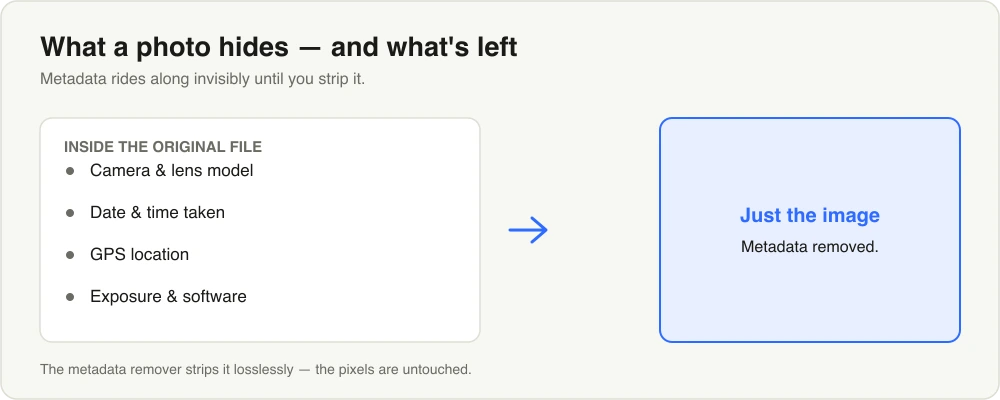
The camera, timestamp, settings, and often the GPS location travel inside the file — until you strip them out.
Why you should care
The camera settings are harmless. The location is not.
If your phone geotags photos — most do by default — then a picture taken in your living room carries the coordinates of your home. Share it in a forum, a marketplace listing, or a public post, and anyone who downloads the original file can read exactly where it was taken. You meant to share a photo of a couch; you also shared your address.
Social networks usually strip EXIF on upload, which lulls people into thinking it is a solved problem. It is not. The moment you send the original file directly — over email, a messaging app that preserves originals, a cloud link, a classifieds site — the metadata travels with it. Anywhere you hand over the raw file, you are handing over the location too.
Stripping it is lossless
Removing EXIF does not touch your image. The metadata lives in its own section of the file, separate from the pixel data, so it can be cut out without re-encoding the photo. The metadata remover removes those bytes and leaves the pixels exactly as they were — no quality loss, no re-compression, no subtle softening.
That is worth stressing, because a lot of “photo cleaner” tools re-save the image to strip metadata, which quietly runs it through a fresh compression pass and degrades it a little every time. Cutting the metadata bytes out is the honest way: same pixels, minus the private data.
For JPEG and PNG this is a clean, lossless removal. For other formats the tool falls back to a re-encode to clear the metadata. One thing to know up front: HEIC is not supported — the format many iPhones use by default. Set your phone to save as JPEG, or convert the file first.
Do it on your own device
Here is the part that undercuts a lot of “remove EXIF online” services: to clean your photo, they make you upload the original — GPS tags and all — to their server. You are sending the exact thing you wanted to keep private to a stranger’s machine, then trusting them to delete it. That defeats the entire purpose.
Ruah runs in your browser. The photo never leaves your device — nothing is uploaded, there is no account, and no server ever sees the file. You strip the metadata locally and the only copy that carries your location is the one that stays with you.
A small bonus: it trims the file
Metadata is not free. A full EXIF block, sometimes with an embedded thumbnail and a color profile, can add tens of kilobytes to every photo. Stripping it shaves a little off the file size on top of the privacy win. It is not why you do it, but it is a nice side effect.
The quick version
- EXIF = hidden data in your photo: device, timestamp, settings, and often GPS location.
- The privacy risk is the location — sharing an original file can reveal where you live or were.
- Strip it losslessly so image quality is untouched: Remove metadata.
- Do it locally — never upload the original to a service just to clean it.
- HEIC is not supported; use JPEG or convert first.
One more thing worth knowing: converting or re-saving an image to a different format usually drops most of its metadata as a side effect, since the new file is written from scratch. So if you are already processing a photo before sharing it — for example, cleaning it up before you send it to an AI model — you often get the privacy benefit for free. When you are not re-encoding anyway, a dedicated lossless strip is the cleaner choice.
Try it now — Remove EXIF data in your browser, nothing uploaded.