Compression
Why is my PNG so large — and how to shrink it
PNG stores every pixel in full colour with zero loss, which is perfect for logos and screenshots but wildly oversized for photos. Here is what is bloating your file and how to fix it.
Last updated July 23, 2026
Why PNG files get so big
PNG is a lossless format. When it saves an image it keeps every pixel exactly as it was, in full colour — up to 16 million possible colours per pixel — and never throws any detail away. That’s a feature: a PNG opens tomorrow looking pixel-for-pixel like it did today. But it’s also the reason your file is huge. A JPEG or WebP gets small by discarding detail your eye can’t see; PNG refuses to, so it hands you the whole thing.
That trade-off is great for some images and terrible for others. The size problem almost always comes down to what kind of image you saved as a PNG.
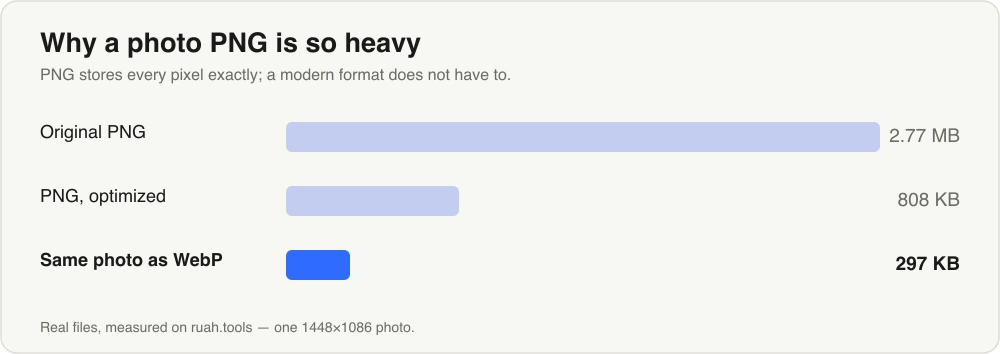
The same photo. Lossless optimization trims it, and switching format trims it far more.
The usual culprits
If a PNG feels far bigger than it should, it’s usually one of these:
- A photograph saved as PNG. Photos have millions of subtly different colours and no flat regions to compress. PNG stores all of it faithfully, so a photo that would be 300 KB as a JPEG balloons to several megabytes as a PNG.
- AI-generated exports. Most image generators hand you a full-colour PNG by default. These look photographic, so they carry all the same weight — often 2–5 MB each.
- Design-tool exports. Figma, Photoshop, Canva and friends export PNG at full bit depth and frequently at 2x or 3x resolution, which multiplies the pixel count several times over.
- Big screenshots. A full-window or Retina screenshot can be 3000+ pixels wide. Even flat UI colour adds up fast at that size.
The common thread: PNG’s honesty is wasted on content the format was never meant to carry efficiently.
The fix depends on the image
There are two good ways out, and picking the right one is the whole job.
| Your image | Best fix | Typical size drop |
|---|---|---|
| Photo-like PNG (photos, AI art, rich renders) | Convert to WebP or JPG, or compress with lossy quantization | 60–80%+ |
| Flat graphics, screenshots, logos, UI | Compress the PNG with lossy palette quantization | 60–80% |
| Needs exact pixels or smooth gradients | Keep PNG, compress losslessly | 10–20% |
Option 1 — Compress the PNG (keep it a PNG)
The compressor applies lossy palette quantization by default. Instead of storing 16 million possible colours, it picks a carefully chosen palette and adds subtle dithering. For most images the result is indistinguishable from the original while being 60–80% smaller. It’s technically lossy, but tuned to fall below what your eye can pick up — so a bloated screenshot or flat graphic shrinks dramatically and still looks identical.
Everything runs on your own device with WebAssembly. Nothing is uploaded, and you don’t need an account. If you need the exact-pixels guarantee instead, flip on the Lossless toggle — that rewrites the file more efficiently without touching a single pixel, which typically shaves 10–20%. There’s more on that distinction in compress without losing quality.
Option 2 — Convert photo-like PNGs to WebP or JPG
If the image is really a photograph, keeping it as a PNG is fighting the format. Convert it instead. Drop it into the converter, pick WebP for a modern all-round replacement or JPG for maximum compatibility, and you’ll usually land 60–80% smaller than the PNG at the same visual quality. WebP even keeps transparency, so you don’t lose that by switching. Both run entirely in your browser.
When you should keep the PNG
PNG isn’t the enemy — it’s just the wrong tool for photos. Stay with PNG (and compress it losslessly) when:
- You need transparency and want crisp, exact edges — icons, logos, product cut-outs.
- The image is text or line art — a screenshot of a document, a diagram, a UI mockup — where JPEG’s blur would smear the edges.
- You have flat colour or few colours — these are already small as PNG and lose nothing.
- There are smooth gradients (a sky, a soft shadow) that heavy quantization could band.
The quick decision
Ask one question: is this basically a photo? If yes, either convert it to WebP/JPG or let the compressor quantize it — either way you’ll cut most of the weight. If it’s flat graphics or text with transparency, keep it a PNG and run it through the compressor to squeeze out the rest. Both paths start the same way: drop the file into the compressor and let it handle the size while you keep the pixels you care about.
Try it now — Compress in your browser, nothing uploaded.