Privacy
Do online image tools upload your photos?
Many image tools send your photo to a server to process it, but they no longer have to. Here is why uploading was once necessary, what it risks, and how to check what any tool actually does.
Last updated July 23, 2026
The honest answer
It depends on the tool, and the split is real: many online image tools do upload your photo to a server to process it, and some do not. For years, uploading was the only option — the work happened on a remote machine, so your file had to travel there first. That is no longer true. Modern browser tools can compress, convert, resize, or cut out a background entirely on your own device, with the file never leaving your computer. The rest of this guide explains the difference and, more usefully, shows you how to verify which kind you are using in about thirty seconds.
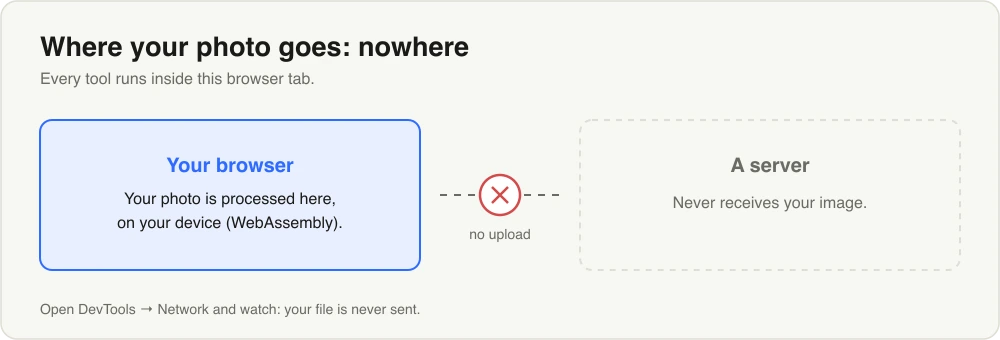
A browser-based tool processes your photo locally — the file is never sent to a server. You can confirm it yourself in the Network tab.
Why uploading used to be necessary
Image processing takes computing power, and a decade ago a web page could not do much of it. The practical design was to send your file to a server, run the heavy work there, and send the result back. That was not a trick or a cash grab — it was the only way to offer a capable tool in a browser. A lot of well-known services were built this way and still work exactly like that, because rewriting them is a large job and the server approach genuinely worked.
So if an older tool uploads your images, that is not necessarily bad faith. It is just the era it was built in.
What uploading actually risks
Sending a photo to someone else’s server is usually fine. The concern is that you often cannot see what happens next, and a few things ride along that you might not expect:
- Retention. The file sits on a server for some window of time. How long, and whether copies are kept, is rarely spelled out clearly.
- Terms of service. Some free tools grant themselves broad rights to the images you upload. Worth a skim before you send anything sensitive.
- Hidden metadata. Photos from a phone or camera often carry EXIF data — camera model, the exact date and time, and sometimes GPS coordinates of where the shot was taken. That travels with the file unless it is stripped first.
- Sensitivity. An ID scan, a medical image, a contract, a private family photo — these are the cases where “it is probably fine” stops feeling like enough.
None of this means every upload-based tool is careless. It means you are trusting a policy you cannot inspect, and for some images that trust is worth more than for others.
The on-device alternative, and how it works
Browsers got much faster at real computation. Two technologies matter here: WebAssembly, which runs near-native code inside the page, and WebGPU, which lets the page use your device’s graphics hardware. Together they are enough to do serious image work locally — the same jobs that once needed a server now run in the tab you already have open.
With this approach, your file is read, processed, and saved without a round trip. Nothing is uploaded because nothing needs to be. The one thing that may download is a model or code file the first time you use a feature (for example, the background-removal model), after which your images stay put.
How to check any tool for yourself
You do not have to take anyone’s word for it, including ours. Your browser will tell you:
- Open the tool’s page.
- Press F12 (or right-click → Inspect) to open DevTools, and click the Network tab.
- Clear the list, then run the tool on an image — compress it, convert it, whatever it does.
- Watch the requests. If your file is being uploaded, you will see a large outgoing request roughly
the size of your image, usually a
POST. If the tool runs locally, you will see no such upload — only small requests, or none at all.
This works on any image tool on the web. It is the most reliable answer you can get, because it watches what the tool does rather than what it says.
How Ruah handles it
Ruah runs everything on your device. When you compress an image — or convert, resize, crop, remove a background, or strip metadata — the file is processed in your browser and never uploaded. There is no account and nothing to sign. You can confirm it with the Network-tab check above: run a compression and watch that your image is not sent anywhere.
A couple of honest limits so you know what to expect: Ruah does not support HEIC input, so iPhone photos in that format need converting first. And the AI image tools follow the same on-device principle — the work happens locally, not on a server holding your pictures.
If privacy is your reason for asking this question, the highest-value next step is metadata. Before you share or post a photo, strip the EXIF — including any GPS location — with the EXIF remover. And if you are feeding images to a model, the guide on preparing images for AI covers how to get clean, appropriately sized files without giving anything away you did not mean to.
Try it now — Compress in your browser, nothing uploaded.